
GAP guide for salon owners
English · Tiếng Việt
This guide is for salon owners who have just received a GoCheckin trial account. It covers how to sign in to GAP, which apps come with the account, and what to expect the first time you use them.
Your account details
After registration you receive:
| Detail | Example | Used for |
|---|---|---|
| ID (salon ID) | trial_gcihubtest4 | The ID field at sign-in |
| Admin username | tannx | The User/ Email field at sign-in |
| Admin password | (sent separately) | The Password field at sign-in |
| Sign-in page | https://gap.gocheckin.net | Where you sign in |
| Trial end date | 2026-11-08 | The trial account is locked after this date |
Keep your password private and don't share it in public messages.
1. Sign in to GAP
-
Open https://gap.gocheckin.net in your browser (Chrome, Edge or Safari).
-
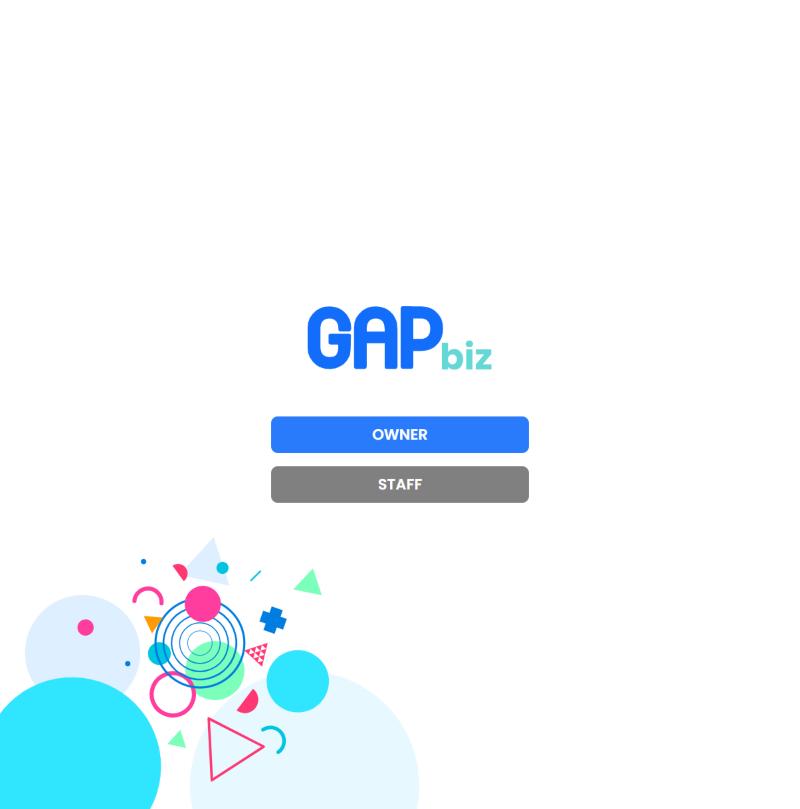
Choose OWNER.
-
On the Password tab, fill in:
- ID: your salon ID, for example
trial_gcihubtest4 - User/ Email: the admin username (or your registration email)
- Password: the admin password
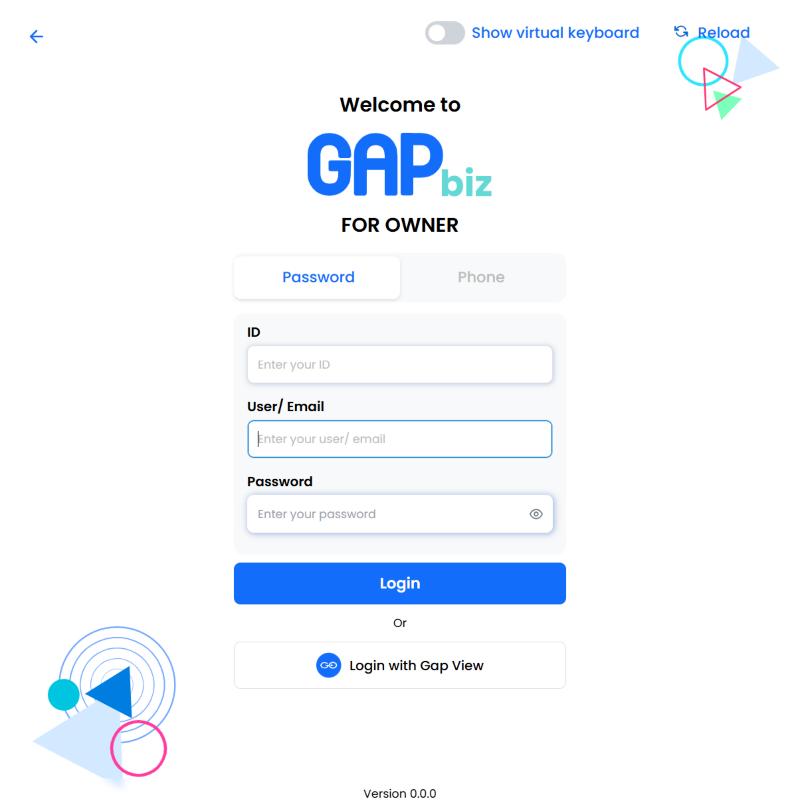
- ID: your salon ID, for example
-
Click Login.
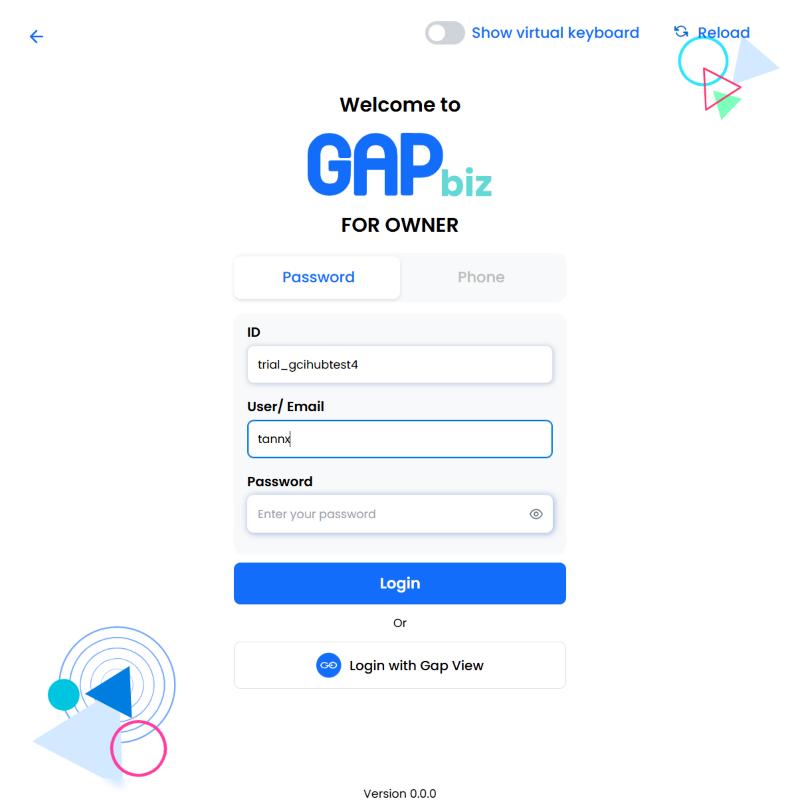
Trial accounts are not asked to change the password at first sign-in. You can change it later.
The GAP app
Besides the browser, you can install the GAP app on the salon's devices. Signing in works exactly as on the web. Some apps (such as Go POS) currently run only inside the GAP app.
| Device | Download |
|---|---|
| Windows | Install GAP on Windows (guide) |
| Android | GAP on Google Play |
| iPhone / iPad | GCI App Platform on the App Store |
2. Home screen and apps
After signing in you see your salon name at the top left and the Mini apps list:
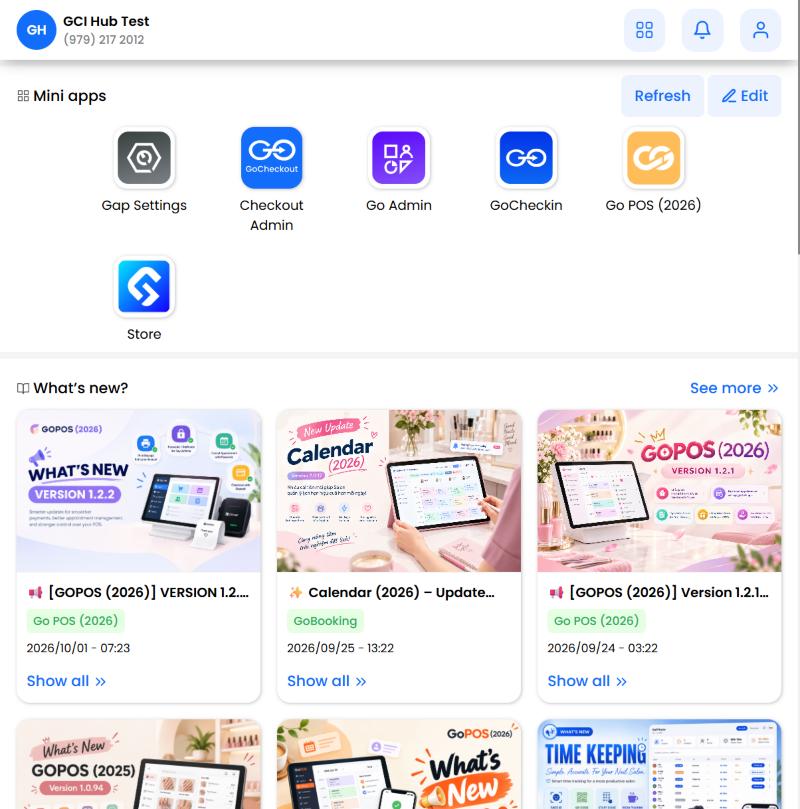
| App | What it's for |
|---|---|
| Gap Settings | General salon settings |
| Checkout Admin | Payments (Go Checkout) |
| Go Admin | Customers, reviews, promotion campaigns and reports |
| Go POS (2026) | Point of sale at the front desk (opens only in the GAP app, see section 7) |
| GoCheckin | The customer check-in screen (runs on the device at the front desk) |
| Store | The GAP app store: install or update apps |
Below the apps, What's new shows product updates. Refresh reloads the app list and Edit lets you reorder the apps.
Opening an app for the first time
The first time you open an app, GAP asks whether to open it automatically every time you sign in:
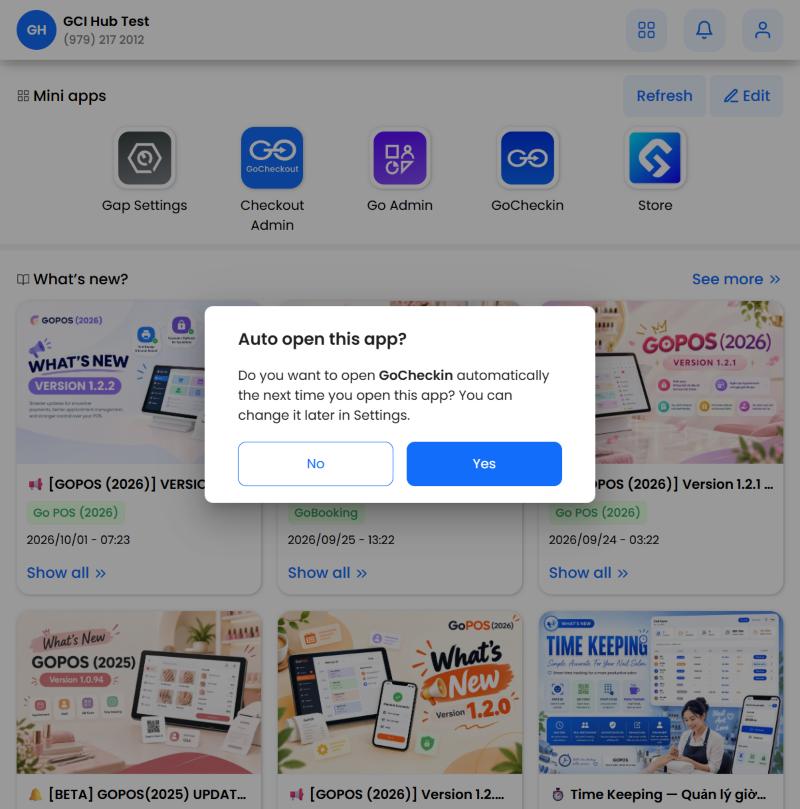
- Yes: next time, GAP opens this app straight away. Useful for a device that only runs one app, such as the front-desk check-in tablet.
- No: next time, you land on the home screen.
You can change this later under Account → Auto Open App.
3. Passcode (4 digits)
Go Admin and Gap Settings hold sensitive data, so they ask for a Passcode before opening:
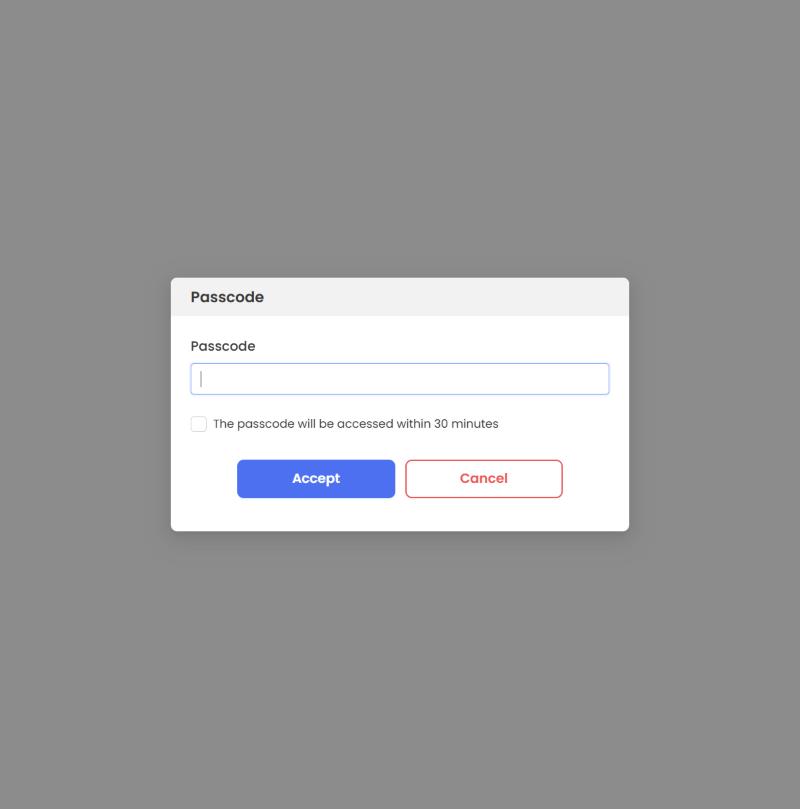
- The default passcode is the last 4 digits of the salon phone number. For a salon phone of
(979) 217-2012, the passcode is2012. - Tick "The passcode will be accessed within 30 minutes" so you are not asked again for 30 minutes.
- Change the passcode after your first use: Account → Setting Passcode.
4. Go Admin
Go Admin is the salon's main dashboard: customers, messages sent, surveys and reviews.
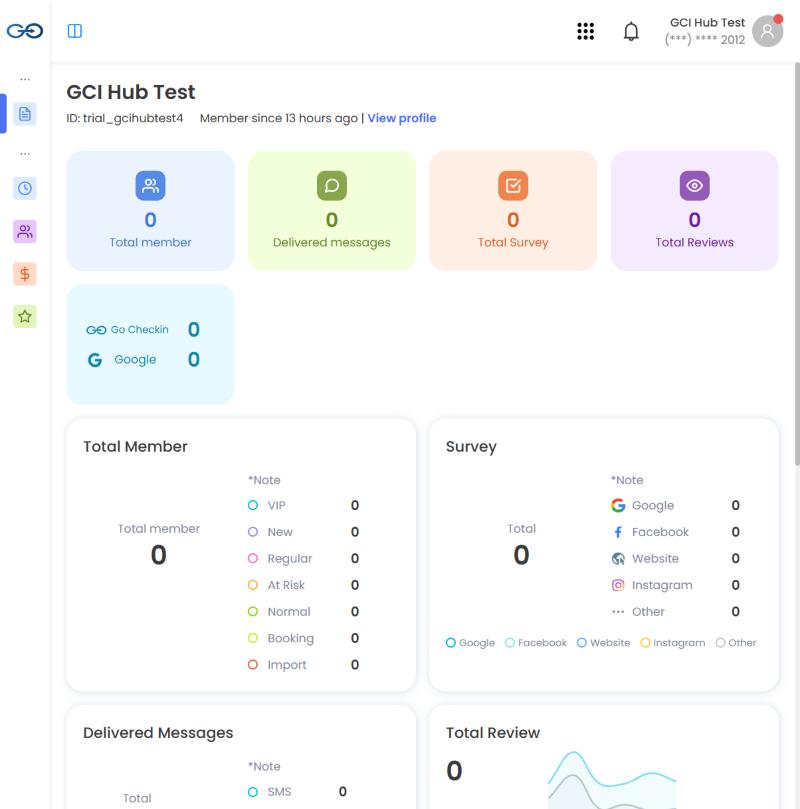
- At the top: the salon name, its ID, and View profile for the salon details.
- The tiles: Total member (customers), Delivered messages, Total Survey and Total Reviews.
- Total Member splits customers into groups: VIP, New, Regular, At Risk, Normal, Booking, Import.
- The left menu switches between reports, check-in history, customers, revenue and reviews.
A new account shows zeros everywhere. The numbers grow as customers start checking in.
5. Gap Settings
Gap Settings holds the salon settings and the per-app settings:
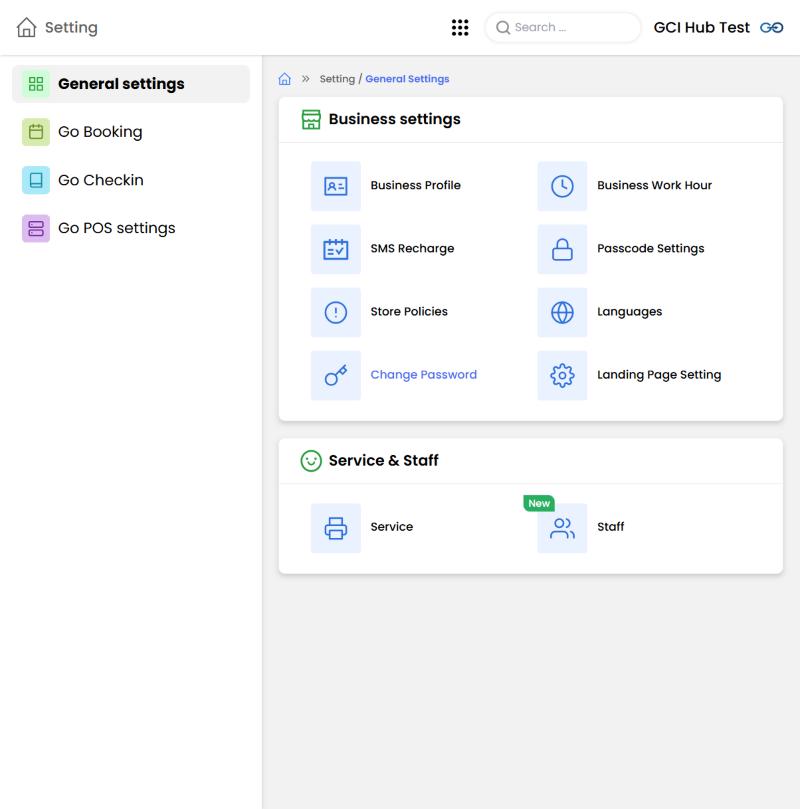
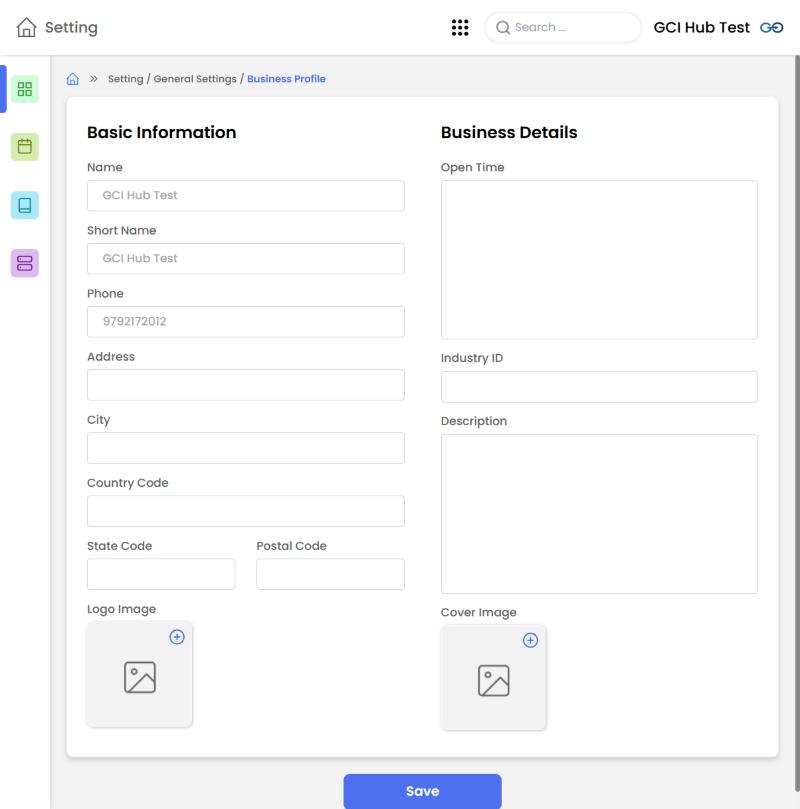
- General settings → Business settings: Business Profile, Business Work Hour, SMS Recharge, Passcode Settings, Store Policies, Languages, Change Password, Landing Page Setting.
- Service & Staff: manage your Service list and Staff.
- The left menu has the settings for Go Booking, Go Checkin and Go POS.
Start with Business Profile: fill in the address, city, state code, postal code, logo and cover image, then click Save:
6. Checkout Admin
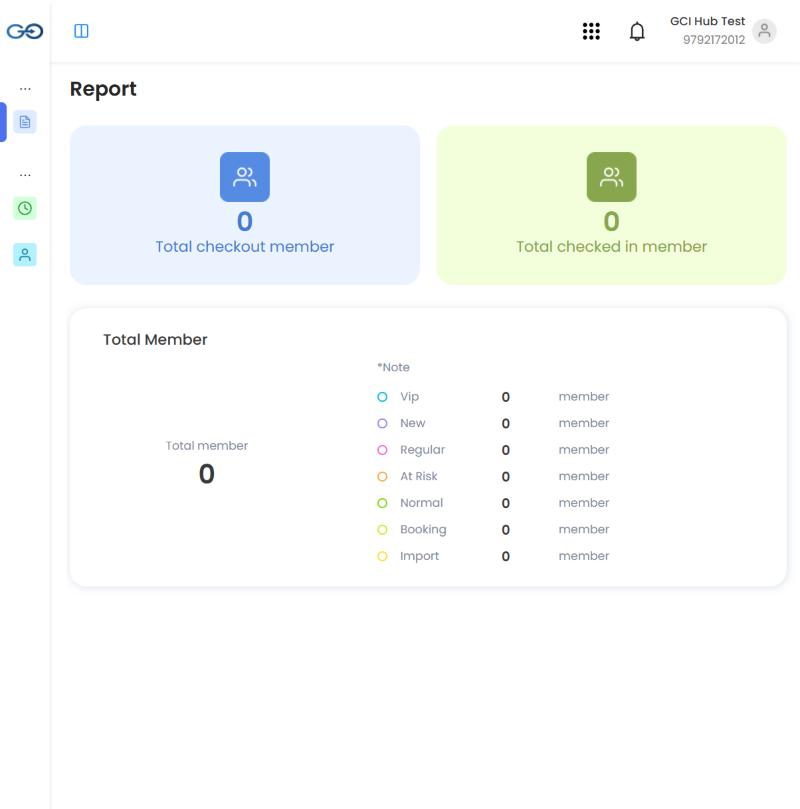
Checkout Admin opens the Go Checkout Report: customers who checked out (Total checkout member), customers who checked in (Total checked in member) and the customer groups.
7. Go POS (2026)
Go POS is the point of sale at the front desk: create tickets, take payments and manage staff turns.
Note: Go POS currently opens only in the GAP app installed on the salon's POS device or tablet. Opening Go POS in a web browser (gap.gocheckin.net) is blocked and only shows a loading spinner that never finishes. Download it from The GAP app; call (832) 968-6668 if you need help setting up your POS device.
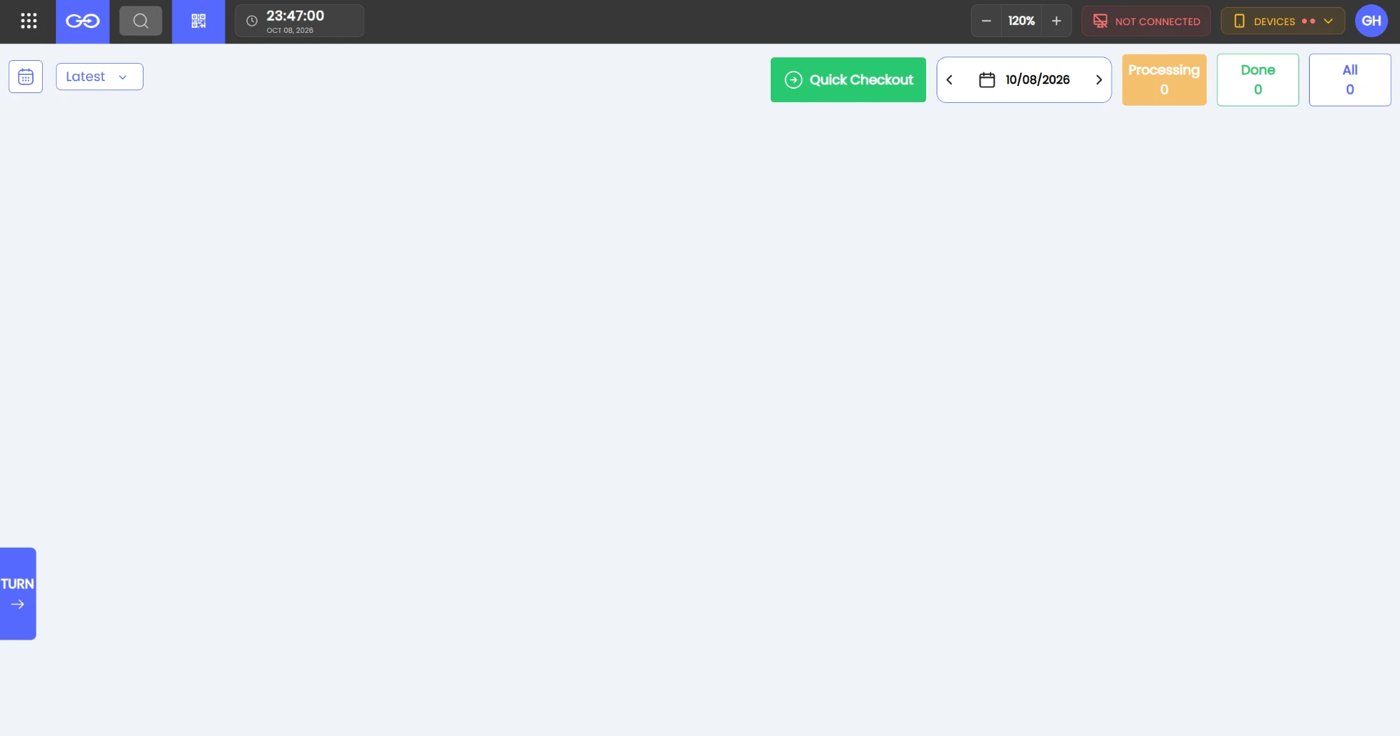
- Quick Checkout: start a checkout ticket quickly.
- Pick a date in the middle to see that day's tickets. Processing, Done and All count the tickets.
- TURN on the left edge: opens the staff turn list.
- Top bar: clock, text size (120%), connection status and DEVICES (card reader, printer and other devices).
8. GoCheckin (front-desk check-in)
GoCheckin is the self check-in screen for customers. Open it on the tablet at the front desk, and customers check in by entering their phone number:
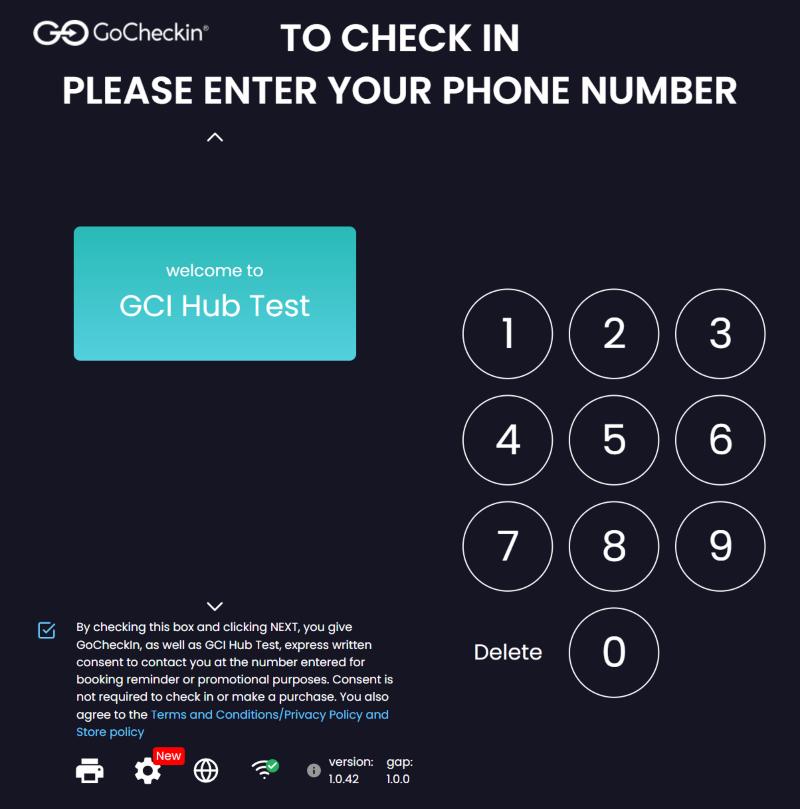
- The screen shows your salon name ("welcome to …") and a number pad.
- The customer enters their phone number, accepts the messaging consent (the checkbox at the bottom), and continues.
- The icons at the bottom left are the printer, settings, language and connection status.
- Choose Yes when GAP asks to open the app automatically (see section 2), so the front-desk device always opens straight to check-in.
If you see "YOUR DEVICE IS NOT AVAILABLE TO USE", the device is not activated for your salon yet. Call (832) 968-6668 for help.
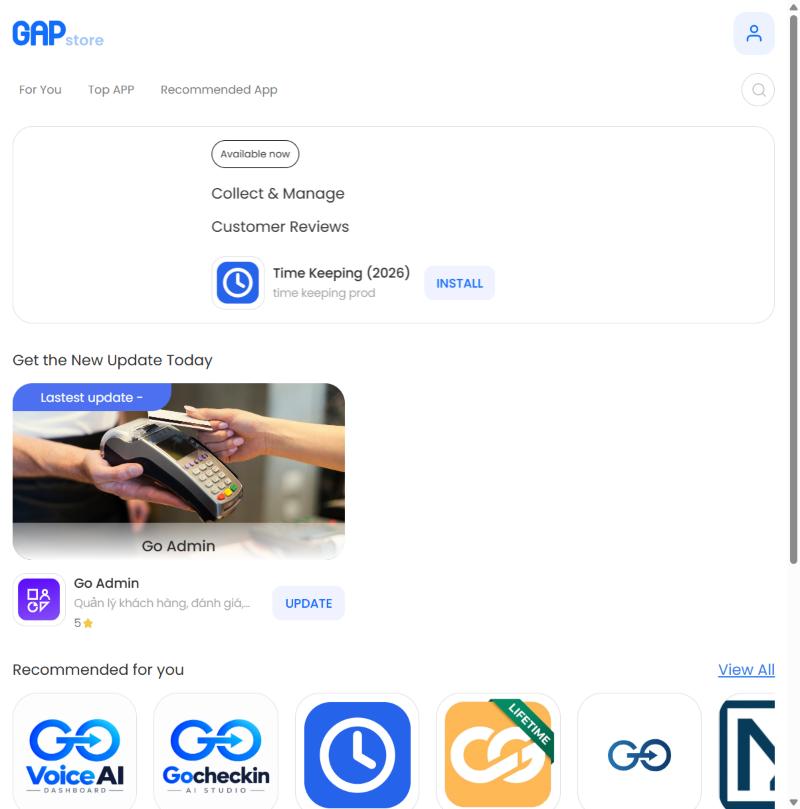
9. Store: add more apps
Store is the GAP app store. There you can:
- Browse suggested apps (For You, Top APP, Recommended App).
- Click INSTALL to add an app, or UPDATE to update one you already have.
10. Account
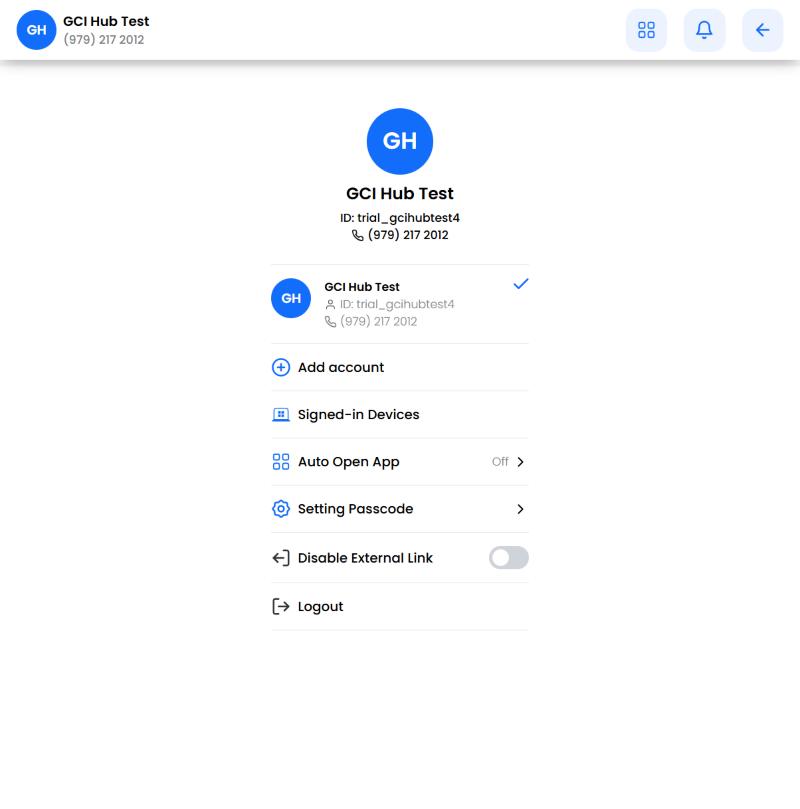
Click the person icon at the top right to open your account page:
| Item | What it does |
|---|---|
| Add account | Sign in to another salon and switch between salons |
| Signed-in Devices | See the devices currently signed in |
| Auto Open App | Choose the app that opens when you sign in |
| Setting Passcode | Change the 4-digit passcode |
| Disable External Link | Block links that leave GAP (for front-desk devices) |
| Logout | Sign out |
Need help?
Call (832) 968-6668 and give your salon ID (for example trial_gcihubtest4) for faster support.